
For today just a small tip on how to align your parameter changes and filters to all become effective on clicking the same button, like here:

How to do this
Parameters in Tableau allow the user to provide single values to their workbook. This feature enables interactivity in dashboards. It also allows for the dynamic change of calculations.
As Tableau themselves put it:
A parameter is a workbook variable such as a number, date, or string that can replace a constant value in a calculation, filter, or reference line
These variables can be predefined based on existing fields from your data source or we are free to have them as entry fields, thus providing tremendous flexibility
We can change parameter inputs either using a dropdown if the parameter is filled from a predefined list, or we can assign values to it using actions, or both.
As soon as we change the parameter value, it will trigger all calculations that are downstream, as the following gif illustrates. Whether we click somewhere or we press Enter, the parameter will be set and the dependent calculations updated.

Now there may be cases where we do not want this to happen. For example, assume our parameter is part of a broader “set your filters” page. For a seamless user experience, you’d want all filters and the parameter to enter into effect on clicking your “apply” button and not the filters being applied at once but the parameter being triggered in advance.
Whatever your usecase, here is
How to ensure a change in parameter value will only become active when clicking an “apply” button.
Let us build this together.
Start by connecting to Sample Superstore on your Tableau.
Create a simple parameter like in the above gif. Just an integer.
Create a second parameter. My parameters are named p.multiplier and p.transfer_multiplier
Create a calculation that will multiply the sales times the p.transfer_multiplier parameter.
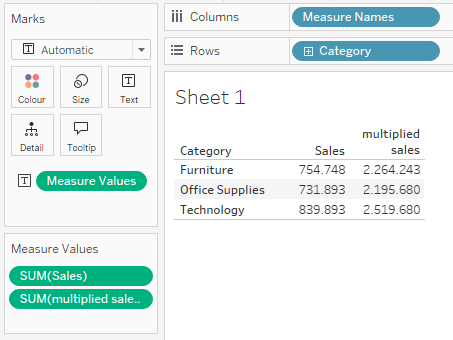
Put a simple table based on category as your dimension. Add sales as well as the multiplied sales as your measures by simply double clicking them.
Next, create a second sheet. This will be our apply button. Add ‘Apply’ to your rows and add year of order date and the ship mode to your filters as well as the details
Also, add a new field that we will call “transfer” to the details. Transfer is nothing else then a calculated field that has [p.multiplier] in it.
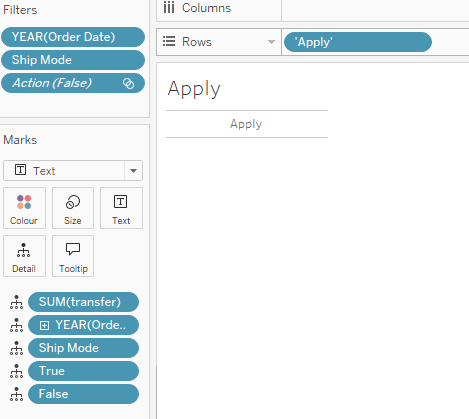
The true and false fields are just for dehighlighting after click.
Now, put both sheets on a dashboard. Add the filters from the “Apply” sheet and also add your multiplier parameter (not p.transfer_multiplier).
Arrange a bit and then create actions:
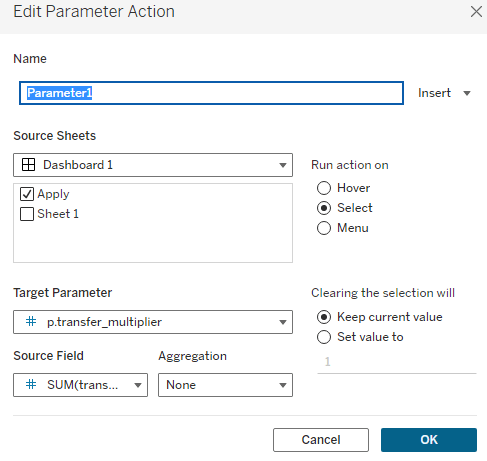
- Parameter action that changes p.transfer_multiplier to the value of [transfer] field
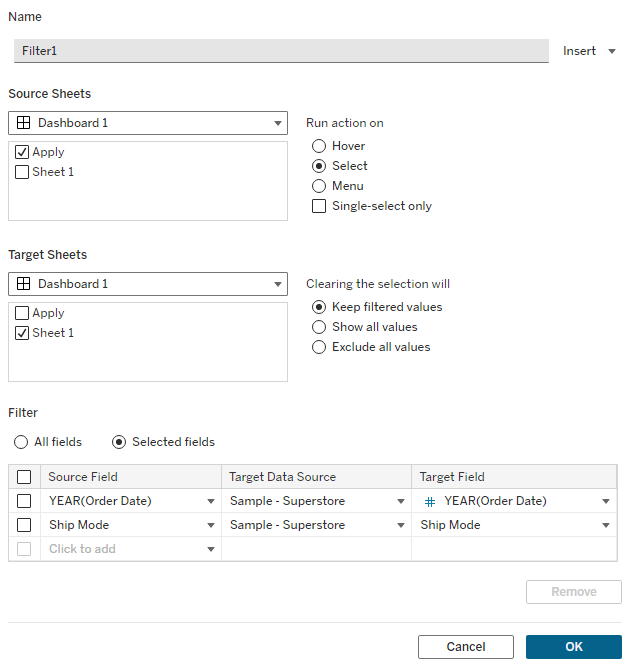
- Filter action that applies the filter settings from your year of order date and ship mode filters to the table sheet
The final action is our de-highlighting action
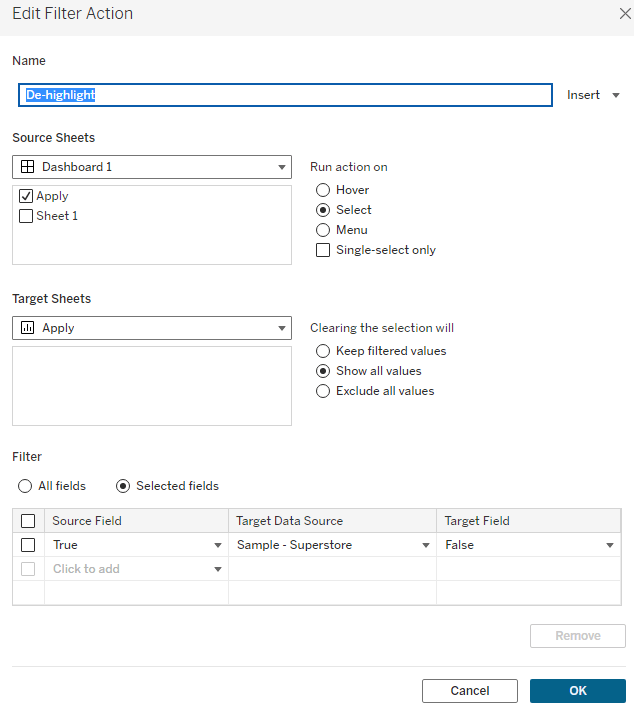
And with that, we are done. Your parameter and your filters will now only be applied on click of the “apply” button.
Nothing spectacular but it aligns your filters and parameter changes which often results in better user experience.
And that’s it for today, I hope you find that useful.
As always appreciate your feedback.
Until next time.
Steffen
 Tableau Adventurer
Guten Tag Steffen!
Is your Apply „button“ is keyboard accessible for those unable to use a mouse?
LikeLike