
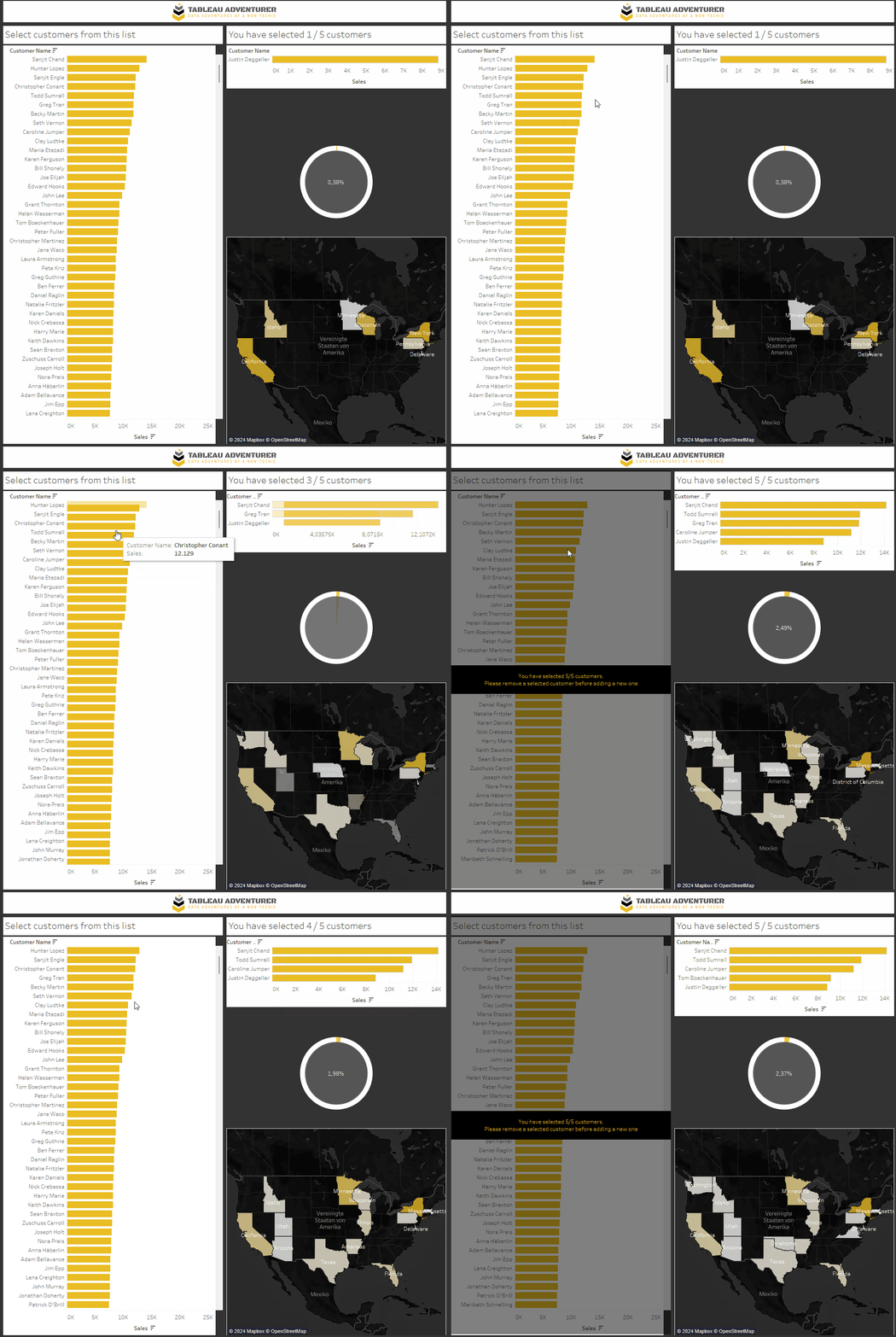
For today we shall have a look at an easy way to limit the number of selections like in this example.
Create the sets
First, start by right clicking Customers and select “create –> set”. Select all customers and name it [SET – All customers].
Next, do the same again but this time don’t select any customer (you could, but for a clean workflow, jus don’t). Name the set [SET – selected customers].
On the data pane, select both just created sets by pressing CTRL and clicking them.
When they are marked, right click and select “create combined set”

On the next step, select “SET – All customers except shared members”.

This way, our new set which we will name [SET – selected customers} will be the remainder of all customers less those that we selected. This is mainly for optics and a nicer user flow since we will avoid letting the user click the same customer multiple times for no effect.
Two calculations needed
//count of customers in set
{ SUM( {include [Customer Name]: countd(IF [SET selected customers] THEN [Customer Name] END)})}
This will give us back the number of customers we have selected and which are therefore IN the [SET – selected customers] Set.
//dynviz - block set
{max([count of customers in set] =5)}
This will serve to enable the limitation of our set selection.
Take good note of the fact that we wrap the inner calculation into a table scoped LOD. This is needed to make the calculation selectable for our Dynamic Zone Visibility.
Why is that? Because a Dynamic Zone Viz trigger may not be dependent on results of the vis itself. Tableau themselves state that a fixed LOD will do but that does not seem to be entirely correct. Try the same calculation but add a fixed [region] to it and you will notice that Tableau does not allow it to be selected for Dynamic Zone Visibility.
Built your sheets
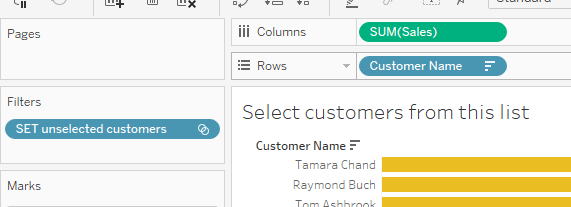
Built your first sheet for those customers, that can still be selected like this. The filter should filter to “in”. Let’s call it “UNSELECTED”.
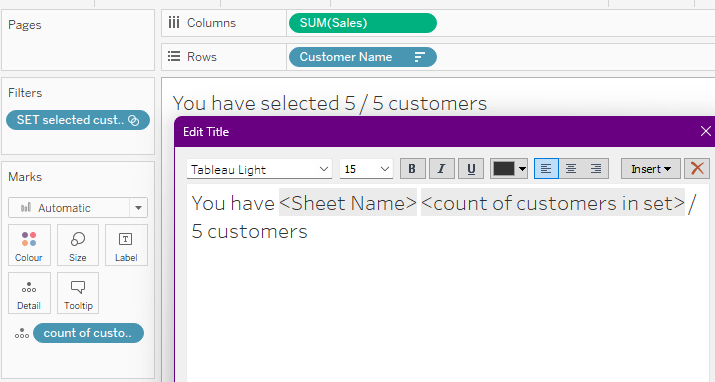
The other one is basically the same, just with the [SET selected customers] instead of unselected. Let’s call it UNSELECTED. BUT we also add our [count of customers in set] to the details so that we can put it into our headline.
Finally, build a third (or fourth, fifth…) sheet that you also make dependent on the selected customers and built it out however you want.
Built the dashboard
Put your three (or four… five..) sheets on a dashboard.
Create a vertical container and float it on top. Name it “block” or anything like that. You can put a blank, a text and another blank in it; make the blanks black with 50% opacity to give it a nice touch and type an informational text into the text box.
Select the vertical container (block), move it over your selection sheet. Select our [DynViz – block set] calculation as the dynamic zone visibility

Add actions
On your dashboard, create two set actions. The first one is based off of the “unselected” sheet and add a selected cusomter to your selected customers set.

The second set action is then the opposite, i.e. with the “selected” sheet as the source, we remove values from the selected customers set

And with that, we are done.
Your users can now select customers from your “unselected” sheet, the set action will add them to the selected set and thus they will appear on the selected sheet.
One the users hit 5 selections, our dynamic zone visibility will trigger and make further clicks impossible.
And that is it for today. Find the workbook on my tableau public.
I hope you found that useful.
As always appreciate your feedback.
Until next time.
Steffen
 Tableau Adventurer
Leave a comment